
How to Choose the Right USB Cable for Your Device
Choosing the right USB cable is more important than you might think. The wrong cable can damage your devices, cause overheating, or deliver poor performance. The right one ensures fast charging, high-speed data transfer, and device safety. Here's what you need to know:
- Connector Types: USB-C is the most common for modern devices, while older gadgets may use USB-A, USB-B, or Micro-USB.
- Data Speeds: USB standards range from USB 2.0 (480 Mbps) to USB4 v2 (80 Gbps). Match the cable speed with your device's needs.
- Power Delivery: USB-C cables can handle up to 240W, but ensure your cable is rated for your device's power requirements.
- Durability: Look for cables with braided nylon, reinforced connectors for longevity.
Investing in a high-quality cable (CA$15–CA$30) saves money in the long run compared to cheap options (CA$3–CA$5) that often fail within a year. Whether you're charging a phone, powering a laptop, or transferring data, choosing the right cable ensures your devices perform as intended while staying safe.
USB: Which cable should I use?
sbb-itb-205d366
USB Connector Types Explained
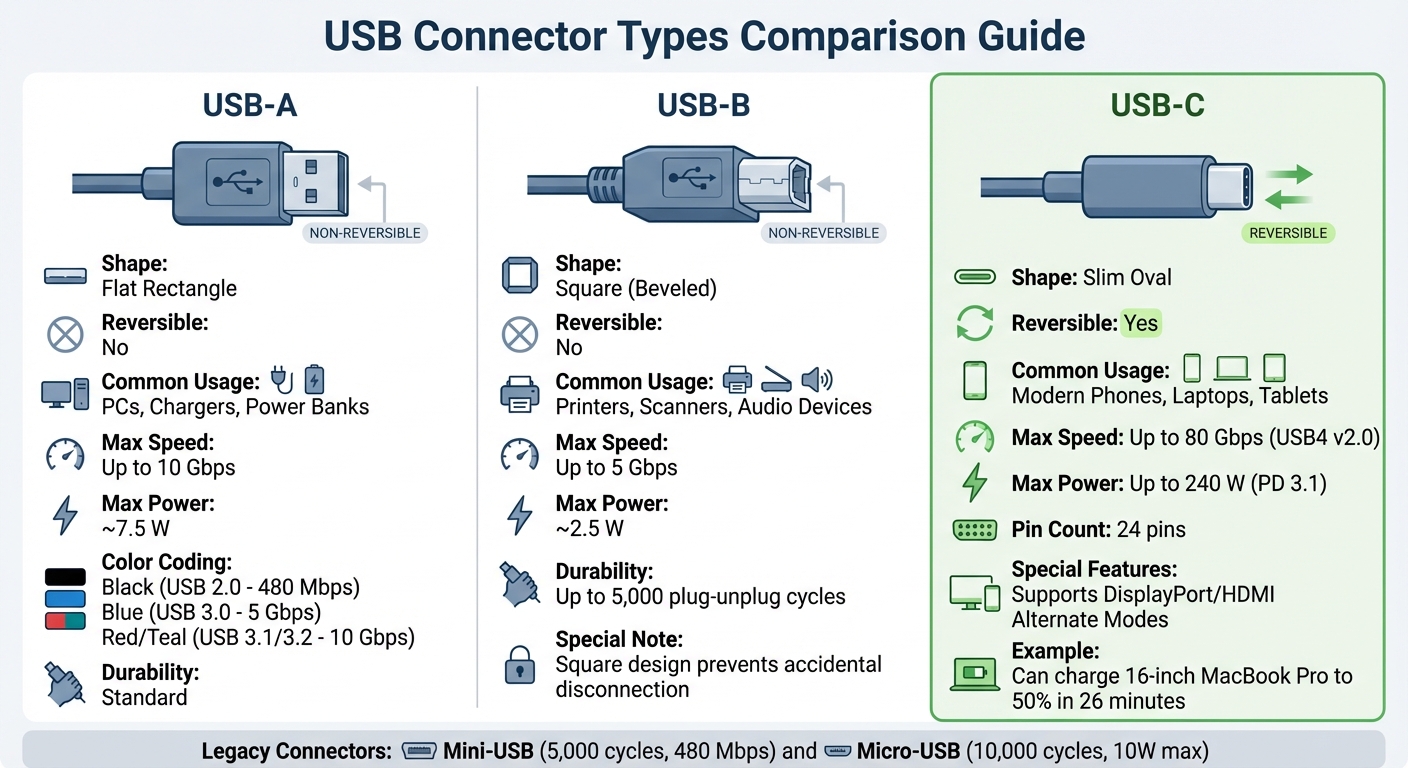
USB Connector Types Comparison: USB-A vs USB-B vs USB-C Specifications
Knowing the physical differences between USB connectors is key to picking the right cable. Each type has its own shape and purpose, helping you avoid mistakes when buying cables or adapters. Let’s break down the main types.
USB-A, USB-B, and USB-C
USB-A is the classic flat, rectangular connector you've probably used countless times. It isn’t reversible, so it has to be inserted the right way up. You’ll find it on devices like computers, chargers, and power banks. The colour of the plastic insert in the port often hints at its speed: black for USB 2.0 (480 Mbps), blue for USB 3.0 (5 Gbps), and red or teal for USB 3.1/3.2 (10 Gbps). USB-A typically supports up to 7.5 W of power, which is fine for peripherals like keyboards and mice but not powerful enough for charging more demanding devices.
USB-B is square-shaped with slightly beveled top corners. It’s mostly used for peripherals like printers, scanners, and audio devices. Maverick Cole from Powersof10 explains why its design matters:
The square design [of USB-B] prevents accidental disconnection - crucial for devices that could malfunction if unplugged during operation.
This durability makes USB-B connectors a reliable choice, rated for up to 5,000 plug-unplug cycles.
USB-C is sleek, oval-shaped, and fully reversible, making it the most user-friendly of the bunch. With 24 pins (compared to USB-A’s 4–9), it offers blazing-fast data transfer speeds - up to 80 Gbps with USB4 v2.0 - and can deliver up to 240 W of power under the PD 3.1 specification. In February 2026, Anker demonstrated this with their Prime USB-C to USB-C cable, which can charge a 16-inch MacBook Pro (M3 Pro) to 50% in just 26 minutes. USB-C also supports "Alternate Modes", enabling it to transmit video signals like DisplayPort or HDMI, all through a single cable.
| Feature | USB-A | USB-B | USB-C |
|---|---|---|---|
| Shape | Flat Rectangle | Square (Beveled) | Slim Oval |
| Reversible | No | No | Yes |
| Usage | PCs, Chargers | Printers, Scanners | Phones, Laptops |
| Speed | Up to 10 Gbps | Up to 5 Gbps | Up to 80 Gbps |
| Max Power | ~7.5 W | ~2.5 W | Up to 240 W |
Micro-USB and Mini-USB
Mini-USB was the go-to connector in the early 2000s for gadgets like digital cameras, MP3 players, and GPS devices. It’s rated for about 5,000 insertion cycles and supports USB 2.0 speeds of up to 480 Mbps.
Micro-USB took over in 2007, designed for thinner devices. It became the standard for Android phones and tablets from 2007 to 2015 and is still used in budget smartphones, e-readers, power banks, and wireless headphones. It’s more durable than Mini-USB, with a lifespan of around 10,000 insertions, but its charging speed is typically capped at 10 W. There’s also a USB 3 Micro-B version, which features a dual-lobe design and was used in older external hard drives and legacy smartphones like the Samsung Galaxy Note 3.
Using Adapters for Compatibility
Adapters can help bridge the gap between older and newer devices. For instance, a USB-A to USB-C adapter allows you to connect older flash drives or peripherals to a modern laptop with USB-C ports. Similarly, USB-C to Micro-USB adapters can charge older Android phones or power banks using contemporary chargers.
However, adapters can’t magically add features your original cable or port doesn’t support. The performance is always limited by the weakest link in the chain, whether that’s the device, port, cable, or adapter. For example, USB-A to USB-C cables generally max out at 15 W of power delivery and 480 Mbps data speeds. To maintain high transfer speeds (20 Gbps or more), use the shortest possible cable or adapter - preferably under 1 metre - to reduce signal loss.
With these details in mind, you can confidently choose the right cable or adapter for your devices.
USB Standards and Data Transfer Speeds
Note: A USB‑C cable can handle speeds ranging from 480 Mbps to 40 Gbps. This broad range sets the foundation for understanding how different USB standards perform.
USB 2.0 to USB4 Speed Comparison
USB 2.0 is still widely used in basic charging cables and older devices, offering a maximum theoretical speed of 480 Mbps. In practice, this translates to about 35–40 MB/s. For context, transferring a 25 GB movie using USB 2.0 could take around 14 minutes.
USB 3.2 Gen 1 (previously known as USB 3.0) raises the bar with speeds up to 5 Gbps, translating to real-world rates of about 450–500 MB/s. With this standard, that same 25 GB file can be transferred in roughly one minute. USB 3.2 Gen 2 doubles the speed to 10 Gbps, delivering practical rates between 900–1,100 MB/s, cutting the transfer time to about 30 seconds.
USB 3.2 Gen 2x2 steps things up further by using dual lanes to achieve 20 Gbps, or roughly 2,000 MB/s. USB4 takes performance to the next level, supporting up to 40 Gbps with real-world speeds of 3,000–3,500 MB/s, allowing a 25 GB transfer in under 10 seconds. Meanwhile, USB4 v2 promises up to 80 Gbps, though practical performance data is still awaited.
| USB Standard | Marketing Name | Max Speed | Real‑World Transfer Rate (Approx.) |
|---|---|---|---|
| USB 2.0 | High‑Speed | 480 Mbps | ~35–40 MB/s |
| USB 3.2 Gen 1 | USB 5Gbps | 5 Gbps | ~450–500 MB/s |
| USB 3.2 Gen 2 | USB 10Gbps | 10 Gbps | ~900–1,100 MB/s |
| USB 3.2 Gen 2x2 | USB 20Gbps | 20 Gbps | ~2,000 MB/s |
| USB4 | USB 40Gbps | 40 Gbps | ~3,000–3,500 MB/s |
| USB4 v2 | USB 80Gbps | 80 Gbps | N/A |
These evolving USB standards can seem confusing due to frequent renaming by the USB Implementers Forum (USB‑IF). For example, USB 3.0 became USB 3.1 Gen 1, then USB 3.2 Gen 1. To simplify things, the USB‑IF now encourages speed-based branding like "USB 5Gbps" or "USB 10Gbps." When choosing a cable, focus on the Gbps rating instead of generation names.
Matching Cable Speed to Your Device
Choosing the right cable speed depends on what you're connecting. For simple devices like keyboards, mice, or basic phone charging, a USB 2.0 cable is perfectly adequate since speed isn't a factor here.
However, for external hard drives or SSDs, speed matters. A standard external HDD works well with USB 3.2 Gen 1 (5 Gbps), but if you're using an SSD, it's better to go with USB 3.2 Gen 2 (10 Gbps) to avoid slowing down performance. For high-performance setups like docking stations, external GPUs, or 4K/8K monitors, USB4 or Thunderbolt 4 cables (supporting 40 Gbps) are ideal.
Keep in mind, your connection speed will always be limited by the slowest link in the chain - whether that's the device, the port, or the cable itself. Using a high-speed cable won't help if it's plugged into a USB 2.0 port. To check port capabilities, refer to your device's manual or use tools like Device Manager (Windows) or System Information (macOS).
Visual markers can also help identify cable speeds. Look for "SS" (SuperSpeed) followed by numbers like 5, 10, 20, or 40, which indicate speed in Gbps. A lightning bolt icon (⚡) signifies Thunderbolt support, which typically means 40 Gbps speeds along with video output. As MTI Software advises:
If a cable isn't explicitly labelled with a higher speed, assume it might be USB 2.0.
Cable length also plays a role in performance. High-speed passive cables (10 Gbps or faster) are usually limited to 1 metre (3.3 ft), while passive USB4 40 Gbps cables are often capped at 0.8 metres (2.6 ft) to maintain signal quality. For longer distances, active cables with built-in electronics are a better choice, though they tend to cost more. Matching your cable to your device's needs ensures you get the performance you're paying for.
Power Delivery and Charging Capabilities
Getting a handle on power ratings is key to charging your devices safely and efficiently. USB Power Delivery (USB PD) is a standard developed by USB-IF that lets your device and charger "talk" to each other to figure out the safest and most efficient power level. Here's how it works: when you connect a cable, the charger and device perform a quick negotiation using a special configuration channel. This ensures that even if you use a 100W charger with a phone that only supports 27W, the charger will deliver exactly 27W - no more, no less.
Power Delivery Ratings Explained
USB technology has come a long way. Back in the USB 2.0 days, charging maxed out at 2.5W (5V at 500mA). Fast forward to today, and USB PD can deliver up to 240W (48V at 5A), which is enough to power everything from tiny earbuds to heavy-duty gaming laptops.
Standard USB-C cables are designed to handle at least 3A of current, supporting up to 60W. If your device needs more power, the cable must have an E-marker chip. This chip ensures the cable can safely handle higher wattages by communicating its capabilities to the charger and device.
Higher wattages come with some perks. They speed up charging and reduce heat and power loss by using higher voltages (up to 48V) and lower currents. This is especially evident with USB PD 3.1, also known as Extended Power Range (EPR), which pushes the maximum power from 100W to 240W. Another standout feature is Programmable Power Supply (PPS), which fine-tunes voltage in tiny 20mV increments. This precise adjustment minimizes heat buildup inside your device and optimizes charging efficiency.
| PD Rating | Voltage/Amperage | Typical Device Use Case |
|---|---|---|
| 15W | 5V / 3A | Basic smartphones, Bluetooth speakers, controllers |
| 27W–30W | 9V / 3A | Fast-charging phones, small tablets |
| 45W–65W | 15V–20V / 3A | Ultrabooks, mid-range laptops |
| 100W | 20V / 5A | High-performance laptops, workstations |
| 240W (EPR) | 48V / 5A | Gaming laptops, high-end workstations |
Knowing these ratings can help you choose the right cable for your device. The goal is to not only charge quickly but also safely.
Selecting Cables for Charging Your Devices
To pick the right cable, start by checking your device's manual or the label on your adapter. Here's a quick guide:
- 15W–30W: Suitable for smartphones and controllers.
- 30W–65W: Ideal for tablets and ultrabooks.
- 100W+: Necessary for high-performance laptops and workstations.
- 140W–240W: Designed for gaming laptops and other power-hungry devices.
For example, the ROG Phone 7 Ultimate, released in late 2024, uses 65W to charge from 0% to 100% in just 42 minutes. Meanwhile, the 16-inch MacBook Pro (2025 model) ships with a 140W USB-C charger using the EPR standard, taking about 90 minutes for a full charge.
"The USB cable used to deliver power from a USB power delivery (PD) source must be rated to the maximum wattage the cable is to deliver. Inferior cables could heat, melt, and catch fire if the current (wattage) exceeds the rating for the cable." – Adafruit Learning System
When charging devices at higher wattages, it’s smart to stick with cables shorter than 1 metre (3.3 ft). This reduces voltage drop and electrical resistance. Always check the cable's wattage rating and look for USB-IF certification on the packaging. For laptops and other high-powered devices, make sure the cable includes an E-marker chip or is rated for at least 5A/100W.
For everyday devices like smartphones and tablets, the Nerds Need USB C Cable 60W is a solid pick. For more power-intensive devices, go for cables rated at 100W or higher. Once you've nailed down the power delivery, it’s worth considering the cable’s durability and quality to ensure it lasts over time.
Cable Durability and Quality Indicators
Choosing the right power rating is just the first step. To ensure your cable can handle daily wear and tear, focus on its construction quality and adherence to safety standards.
Materials and Build Quality
The materials and craftsmanship of a cable are crucial for its longevity and performance. Braided nylon stands out for its resistance to abrasions, cuts, and fraying, making it far more durable than standard PVC plastic. Another excellent option is TPE (Thermoplastic Elastomer), which offers better flexibility and flame resistance compared to cheaper PVC alternatives.
Premium cables often feature a seamless, single-piece metal housing for the plug, along with reinforced strain relief to prevent stress damage. In contrast, low-cost cables use stamped and folded metal with visible seams, which are prone to bending and breaking.
"The absolute weakest point of any cable is where the flexible wire meets the rigid plastic or metal connector head." – INIU
For efficient power delivery, look for cables with thicker wires (such as 24 AWG or 22 AWG), which help reduce voltage drop and heat build-up. High-quality cables also include multi-layer shielding to block electromagnetic interference. If you're opting for a USB-C cable rated above 60W or one that supports high-speed data transfer, ensure it has an E-Marker chip to safely manage power negotiation.
Durability is another key factor. Top-tier options like the Anker Prime USB-C cable boast a 300,000-bend endurance, while mid-range durable cables typically last through 25,000 bends. To check for internal damage, try the "wiggle test" - if the cable only works when held at a specific angle, it's time for a replacement.
Beyond materials and construction, proper certifications are essential for ensuring safety and reliability.
A 2025 PCWorld evaluation by Gordon Mah Ung highlighted the stark differences between a $19 premium USB-C cable and a $9 budget option. The premium cable weighed 86 grams, while the cheaper one weighed just 38 grams, reflecting thinner internal wiring in the latter. Resistance testing revealed that the Belkin BoostCharge 240-watt braided cable had a resistance of 62 milliohms, compared to 209 milliohms for the budget JSAUX USB-C cable - lower resistance translates to better conductivity and a longer lifespan.
"A lighter cable typically means higher resistance and can portend a shorter life span if abused by the owner due to its thinner wires." – Gordon Mah Ung, Executive Editor, PCWorld
Generic cables often fail within their first year, with failure rates reaching 30–40%. Be cautious of cables claiming 100W charging without an E-Marker chip, as they are non-compliant and could pose safety risks.
Warranty and Support Options
Lastly, consider the warranty and support offered by the manufacturer. A reliable warranty is an investment in the safety of your devices.
"Acquiring a fully certified manufacturer's warranty should also be thought of as an insurance policy against future outages caused by any physical-cabling defect." – AEM Test
Top brands often back their products with 1-year warranties, as seen with Nerds Need, while some even provide lifetime warranties and free lifetime tech support. A generous return window, such as a 60-day money-back guarantee, gives you time to confirm compatibility.
Faulty cables can result in costly downtime. For businesses, a network outage caused by a defective cable could lead to significant revenue losses. For everyday users, the cost of frequently replacing cheap cables can quickly add up.
Matching Cables to Your Device Needs
This section focuses on how to choose the right cables based on your device's requirements, building on what we've learned about connector types, standards, and durability.
Cables for Smartphones, Tablets, and Laptops
Most modern smartphones and tablets rely on USB‑C for fast charging and reversible connectivity. However, if you’re using an older Android device (pre-2017), you’ll need a Micro-USB cable, though these are slower and less powerful. For iPhones, USB‑C to Lightning cables are the go-to choice for both charging and data transfer.
Laptops, on the other hand, require significantly more power. High-performance laptops demand USB-C cables rated for 100W to 240W to ensure proper charging. Using a lower-rated cable, such as a 60W one, can result in slower charging or even complete failure to charge. To avoid these issues, always select cables that meet your device’s power requirements and support fast data transfer. For example, the Nerds Need USB 4 C Cable 100W 40Gbps is an excellent choice, offering both high-speed data transfer and enough power for demanding laptops or workstations.
"Understanding USB types isn't just about matching shapes anymore. It's about charging speeds, data transfer rates, and avoiding those frustrating moments when your $1,000 device won't connect because you grabbed the wrong cable." – Maverick Cole, Designer and Filmmaker
If you’re dealing with older chargers or computers that lack USB‑C ports, a USB-A to USB-C cable or the Nerds Need USB A to C Adapter can bridge the gap, allowing you to use older USB‑A chargers with newer USB‑C devices.
While mobile devices require durable, high-power cables, specialty devices often need connectors designed for specific functions.
Cables for Specialty Devices and Accessories
Specialty equipment like printers and scanners typically use USB‑B connectors, which are square-shaped and built for stationary devices. These don’t usually require high-speed data transfer - USB 2.0 speeds (480 Mbps) are more than enough for everyday printing tasks.
For high-speed external storage drives, it’s essential to use cables that support the correct USB standard to avoid performance bottlenecks. Look for cables compatible with USB‑C or USB‑3.0 Micro‑B (a wider, flat connector) that can handle at least 5–10 Gbps.
If you’re connecting to a monitor, ensure the cable supports DisplayPort Alt Mode or is labelled as Thunderbolt 3/4, as these standards are necessary for video output.
With these details in mind, let’s look at some recommended products that align with these varying requirements.
Nerds Need Recommended Products
Here are some top picks to match your device needs:
- For everyday charging, the USB C Cable 60W 480Mbps is ideal for most smartphones and tablets.
- For high-performance laptops and fast data transfer, the USB 4 C Cable 100W 40Gbps delivers incredible speeds - 40 Gbps, which is over 26,000 times faster than the original USB 1.0 standard.
- For added flexibility, the USB A to C Adapter allows you to use older USB‑A chargers with newer USB‑C devices.
All Nerds Need cables come with a 1-year limited warranty and a 30-day free return policy for undamaged items, so you can shop with confidence knowing you’re covered.
Conclusion
Picking the right USB cable doesn’t have to be complicated. Start by figuring out the connector type your device requires. Modern gadgets like smartphones and laptops typically use USB-C, older Android devices often need Micro-USB, and peripherals like printers rely on USB-B. Next, check the cable’s data speed and power rating. For instance, high-performance laptops usually need cables rated between 100W and 240W, while most smartphones work fine with a 60W cable.
Once you’ve matched the connector and specifications, focus on quality to protect your devices. Look for cables with, reinforced strain relief, and sturdy materials like braided nylon. Investing in a well-made cable ensures both safety and long-term reliability.
At Nerds Need, every cable meets these high standards. Whether you’re after the USB C Cable 60W 480Mbps for everyday charging or the USB 4 C Cable 100W 40Gbps for heavy-duty tasks, you’ll get a product backed by a 1-year limited warranty and a 30-day return policy. This gives you peace of mind, knowing your devices are paired with safe, dependable cables.
FAQs
How can I tell if a USB‑C cable supports video output?
To determine if a USB-C cable supports video output, check for USB-C Alt Mode compatibility. Look for markings such as DisplayPort, HDR, HBR2, or HBR3 on the cable itself or its packaging. Alternatively, you can review the cable's specifications sheet to confirm video support. Since not all USB-C cables are designed to transmit video, verifying these details is crucial when connecting to monitors or TVs.
Do I need an E‑marker cable for my laptop charger?
Whether or not you need an E-marker cable comes down to the power output of your laptop charger. USB-C cables with E-marker chips are designed to handle higher wattage - typically above 60W or even 100W - ensuring safe and efficient power delivery.
If your charger delivers 100W or more, using an E-marker cable is a smart choice. For chargers with an output below 60W, a non-E-marker cable might work just fine. However, it’s always a good idea to double-check the cable’s specifications to be sure.
What’s the safest way to use USB adapters without losing performance?
To use USB adapters safely and maintain performance, opt for high-quality, certified cables from trusted brands. Make sure the cables meet your device's power and data transfer requirements. Steer clear of low-cost or uncertified adapters - they can overheat, short circuit, or even damage your devices. By matching the cable specifications to your device, you can ensure reliable performance while minimizing safety risks.